Heimgard support
Troubleshoot your lock.
Choose your lock, follow the relevant checks, and contact us if you still need help.

Troubleshooting
Choose your lock.
Select your model to see only the checks that apply to it. Keep the door open while testing a lock or installation.
Easy Fit
HT-SLM-4 with optional HT-KEY-3 keypad.
The lock does not respond. What should I check?
- Replace the complete battery set with the type specified in the manual; do not mix old and new cells.
- Check polarity and that every battery contact is clean and touching correctly.
- Wake the lock again. If it remains completely inactive, note any light or sound and contact support.
The lock turns the wrong way, stops, or sounds strained.
- Keep the door open and test the original mechanical lock by hand. It must turn smoothly through its full travel.
- Check that the adapter is seated correctly and the mounting screws are even—not overtightened.
- Run the direction/calibration step in the Easy Fit manual again.
If the lock works with the door open but not when closed, the door or strike plate needs alignment.
The Heimgard Door app cannot find or connect to Easy Fit.
- Stand beside the lock and turn on Bluetooth.
- Allow the Bluetooth and nearby-device permissions requested by the app.
- Make sure another phone is not actively connected to the lock.
- Close and reopen the app, then wake the lock and retry.
Only reset the lock by following the manual; a reset can remove configured access.
The keypad does not respond or will not pair.
- Confirm the keypad has power and remove any battery isolation tab.
- Wake the keypad and try close to the lock.
- Follow the keypad pairing sequence in the Easy Fit manual.
- If it was paired before, check whether it is still shown for the correct lock in the app.
A PIN, tag, or fingerprint is rejected.
- Confirm that access method was added to the correct user and lock.
- Wake the keypad before entering the PIN; enter the full sequence exactly as described in the manual.
- Clean and dry the fingerprint sensor and finger, then place the full fingertip flat on the sensor.
- For a tag, hold it steadily at the marked reader area.
If one credential repeatedly fails while others work, delete and add that credential again.
Automatic locking does not work as expected.
- Confirm automatic locking is enabled in the app.
- Test with the door open to separate a setting problem from door alignment.
- Repeat calibration if the lock position is reported incorrectly.
Entry Lock
HT-SLM-3 keypad lock.
The keypad is dark and the lock does not respond.
- Replace all three AA 1.5 V alkaline batteries together.
- Check battery polarity and contacts.
- Wake the keypad and listen for any response.
Keep the mechanical emergency keys accessible outside the home—not behind the locked door.
My PIN or RFID tag is not accepted.
- Wake the keypad first.
- Check that the user PIN or tag was registered under the correct Master PIN.
- Enter the exact sequence from the Entry Lock manual.
- Try another known working credential to identify whether the issue affects one user or the whole lock.
The handle moves, but the door does not unlock.
- Test with the door open.
- Check the spindle length, spindle position, handing, and lock-case installation against the manual.
- Confirm the handle fully returns after use.
Stop if the handle or lock case binds; forcing it can damage the mechanism.
The motor sounds strained or the lock works only with the door open.
This normally points to mechanical resistance or misalignment. Check that the lock case operates smoothly by hand, then inspect the strike plate and whether the door has dropped or swelled. Correct the door hardware before repeating electronic tests.
Can I set up and use Entry Lock without an app or hub?
Yes. PIN codes and RFID tags are configured on the keypad with the Master PIN. A hub is not required for ordinary keypad use. Optional legacy app control requires a compatible Heimgard Zigbee hub; if you do not already have a supported setup, use the lock locally.
What should I do if the batteries are empty?
Use the mechanical emergency key. Replace the complete battery set, then test the lock several times with the door open before closing it.
Smart Lock Fingerprint
Fingerprint keypad lock.
The keypad or fingerprint reader does not respond.
- Replace all three AA 1.5 V alkaline batteries together.
- Check polarity and battery contacts.
- Wake the keypad and note any light or sound.
The exterior USB-C connection provides temporary emergency power only; it does not charge the AA batteries.
My fingerprint is not recognised.
- Clean and dry the sensor and your finger.
- Cover the sensor with the full fingertip in the same orientation used during registration.
- Try a registered PIN or RFID tag to confirm the lock itself works.
- If needed, remove and register the fingerprint again, capturing slightly different parts of the fingertip.
My PIN or RFID tag is rejected.
- Wake the keypad first.
- Check that the credential is registered for this lock.
- Enter the sequence exactly as shown in the Smart Lock manual.
- Test another registered credential to isolate the problem.
The handle moves, but the door does not unlock.
- Keep the door open while testing.
- Check spindle length and position, handing, handle return, and lock-case installation.
- For an adapted multipoint mechanism, contact the qualified installer who carried out the installation.
The lock works with the door open but not when it is closed.
The lock and strike plate are likely misaligned or the door mechanism has too much resistance. Do not compensate by forcing the handle or motor. Adjust the door or strike plate and confirm smooth mechanical operation first.
Do I need an app or hub for everyday use?
No. Fingerprints, PIN codes, RFID tags, and settings can be managed from the keypad with the Master PIN. Existing app control requires a compatible legacy Heimgard Zigbee hub. The lock remains usable locally without it.
Earlier products
Previous Heimgard locks and smart-home products.
How do I identify my older Heimgard product?
Find the model code on the product label, battery compartment, packaging, or original invoice. Include a clear photo of the product and label when contacting support.
Where can I find older manuals and declarations?
Use the Earlier Heimgard products archive. It contains original manuals, product sheets, and available declarations for previous locks and smart-home products.
Manuals & downloads
Start with your product.
Keep the correct manual close, from the first installation to everyday use.
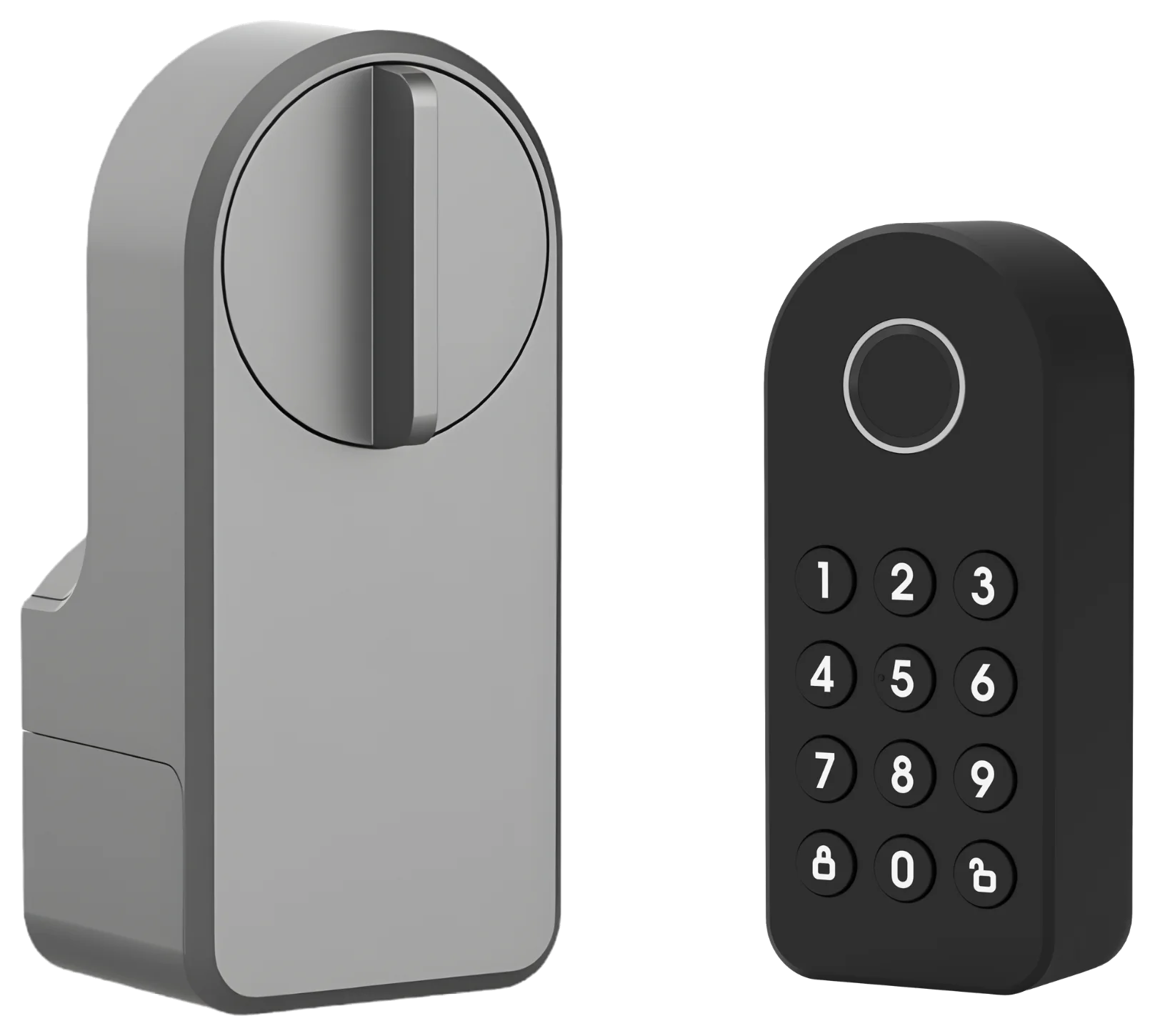
Easy Fit Smart Lock
Installation, setup, daily use and troubleshooting.
Read manual onlineUser manual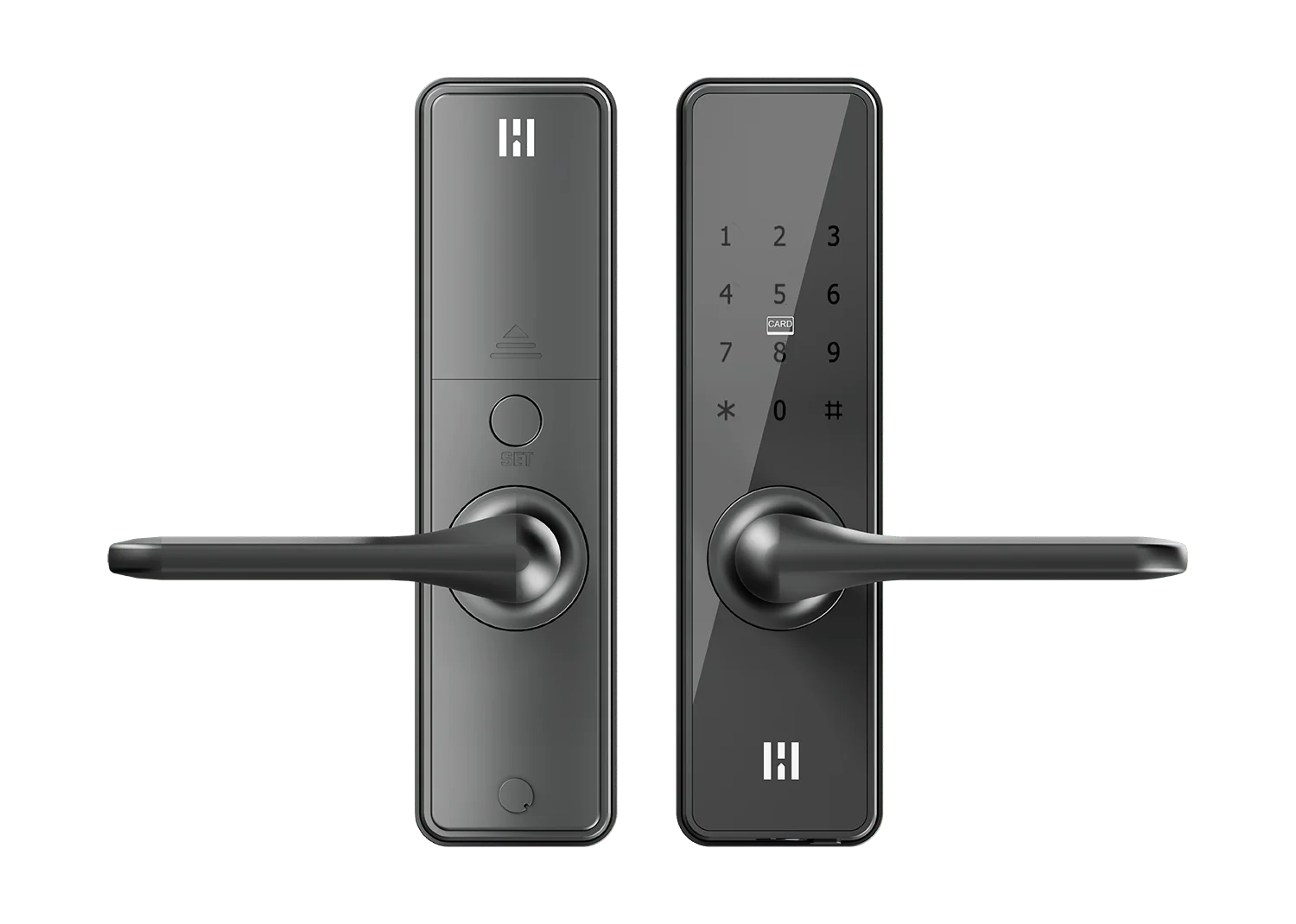
Entry Lock
Installation, setup, daily use and troubleshooting.
Read manual onlineUser manual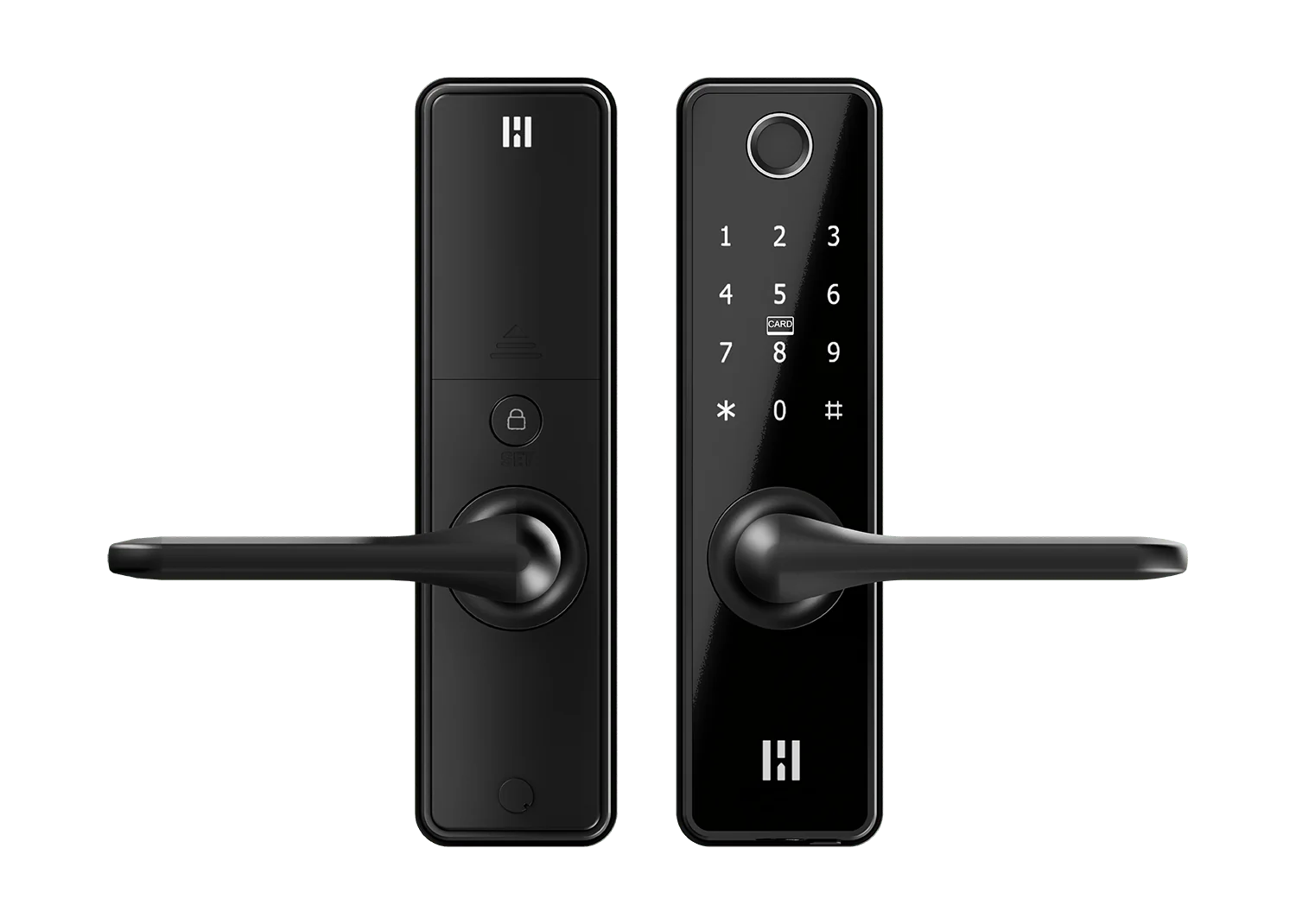
Smart Lock Fingerprint
Installation, setup, daily use and troubleshooting.
Read manual onlineUser manualInstallation videos
Installation & setup videos
Smart Lock & Entry Lock
The videos show Smart Lock. Entry Lock uses the same installation components and steps, although the box contents differ. Follow the manual for your model and door configuration.
Easy Fit Smart Lock
Fit Easy Fit to your door, step by step. Follow the setup and pairing process in the Heimgard Door App.
Product declarations & legal documents.
Download declarations of conformity for Easy Fit and Entry Lock.
Heimgard Smart – cloud services
Read about the changes to cloud services and your options.
Read about the changesContact support
Tell us what happened.
Include the product model, what you expected, what happened, and which check you reached. Tell us whether the lock behaves differently with the door open, and attach useful photos or a short video.
For general company enquiries, contact info@heimgard.com. For product help, use support@heimgard.com.